CodeDesign MCP
Build and run your websites from ChatGPT and Claude
Connect CodeDesign to your AI app once. Then ask it to design, change and publish your sites in plain words.
https://mcp.codedesign.ai/mcp
 Claude
 ChatGPT
 Claude Code
 Cursor
 VS Code
- and any MCP app
 CodeDesign v3Run your website and business apps from ChatGPT or Claude
Check it out on Product Hunt
Ask in plain words. CodeDesign does the work.
Your AI app picks the right CodeDesign tool for each request. It designs the site, shows you a preview, then saves and publishes it when you say so.
- Every change lands in your CodeDesign account, made as you
- Your AI app shows each step it takes, so nothing happens out of sight
- Open the same site in the dashboard or editor to carry on by hand
Build a website for Mariposa, our family bakery and café, and show me a preview.
design_startDone
Here is a first draft for Mariposa: your story, the menu, your locations and an order pickup button.
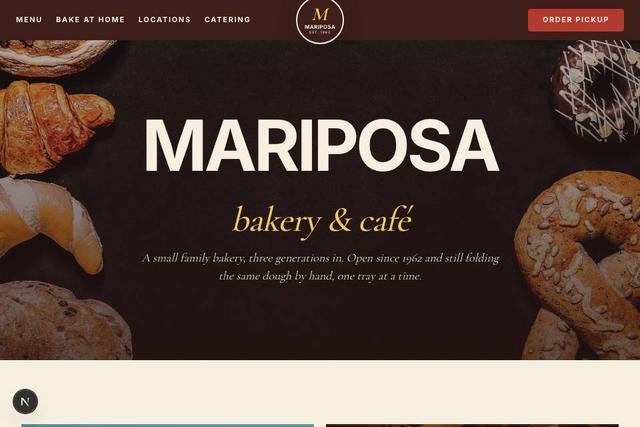 Preview · Mariposa bakery & café
Love it. Save it, make the pickup button green and put it live.
design_saveDone
CodeDesignai_task_startDone
CodeDesignpublish_siteDone
Saved, the button is green, and Mariposa is live at mariposa.cdsn.app.
Everything you do in CodeDesign, from one chat
Your AI app gets more than 50 CodeDesign tools: the actions you have in the dashboard, under the permissions you set.
Design new sites
Describe a business and get a complete design with its own words and images, or start from one of 2,000+ templates.
Design a site for a yoga studio in Lisbon, in Portuguese.
Change any page
Edit text, images, links and styles on builder sites, or hand a change to the AI Companion on sites made with AI.
Rewrite the homepage headline and make the main button green.
Publish and manage domains
Put a site live on its free address or your own domain, and check whether a domain's DNS is set up.
Publish Mariposa and check that my domain points to it.
Write blog posts
Draft posts with a cover image, tags and SEO fields, then publish them when you are happy with them.
Write a post about our autumn bread menu and publish it.
Run the apps on your sites
Set up forms, the AI chatbot, bookings and the cookie banner without opening each app.
Turn on the cookie banner for Mariposa.
See how sites are doing
Visitors, sources and top pages from analytics, an SEO audit, and build errors on sites made with AI.
How many visitors did Mariposa get last week, and from where?
It can also manage your team, site access and workspace settings, and check your plan and AI credits.
Connect your AI app in three steps
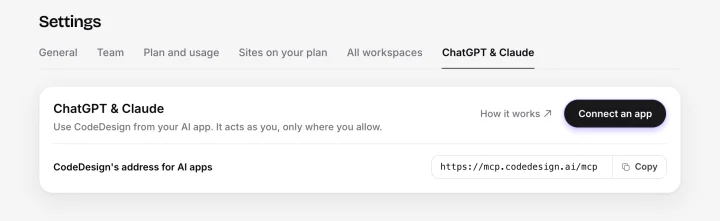
It starts in CodeDesign, under Settings → ChatGPT & Claude. The dialog shows the exact clicks for the app you pick.
-
Step 1
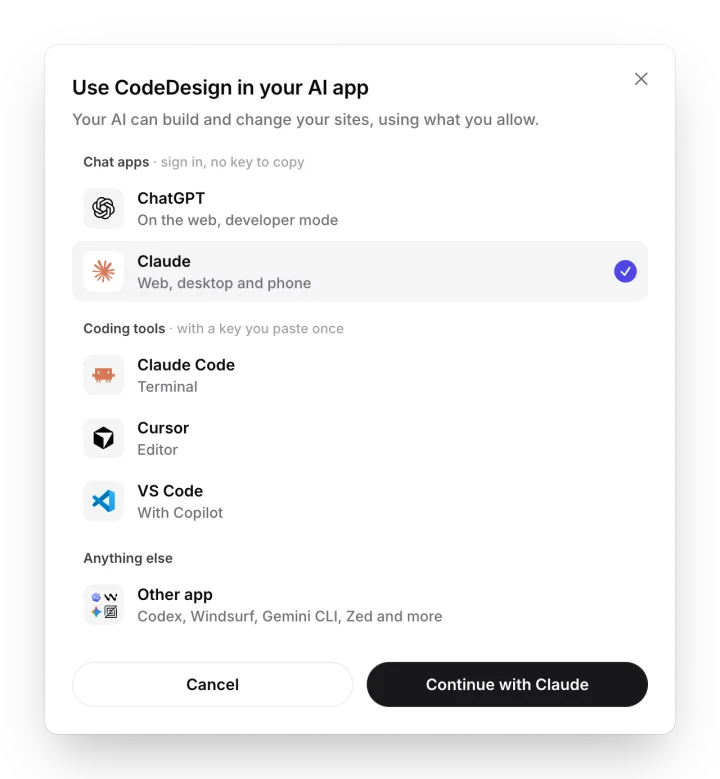
Pick the AI app you use
Choose Connect an app, then your app. Chat apps sign in with your CodeDesign account. Coding tools use a key you paste once.
- ChatGPT and Claude: sign in, no key to copy
- Claude Code, Cursor and VS Code: one key
- Codex, Windsurf, Gemini CLI, Zed and other MCP apps
-
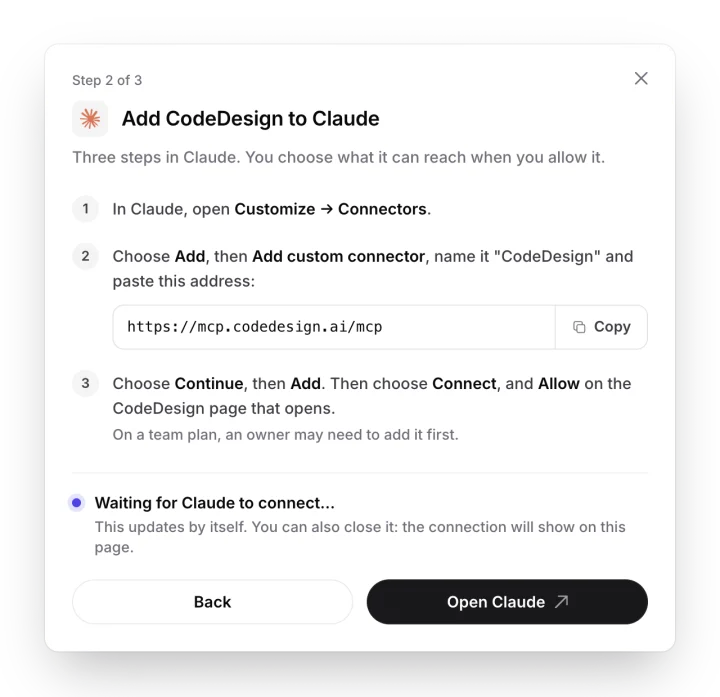
Step 2 · Claude
Add CodeDesign as a connector
In Claude, open Customize → Connectors, add a custom connector named CodeDesign and paste the address. It then works on the web, on desktop and on your phone.
- The address is the same for every app
- The dialog waits and updates by itself
- On a Claude team plan, an owner may need to add it first
-
Step 2 · ChatGPT
Or add it as an app in ChatGPT
On the web, open Settings → Apps, turn on developer mode if ChatGPT asks, create an app named CodeDesign with OAuth and paste the same address.
- Choose Connect, then Allow on the CodeDesign page
- ChatGPT asks you to confirm each change
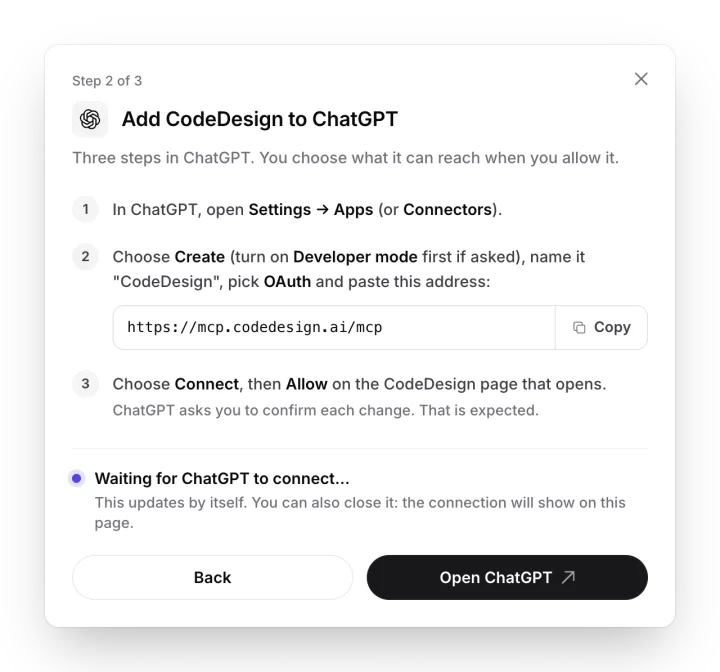
Choose Allow, then ask for anything
Approve the connection on the CodeDesign page that opens. It shows up in your settings, and your AI app can start on your first request.
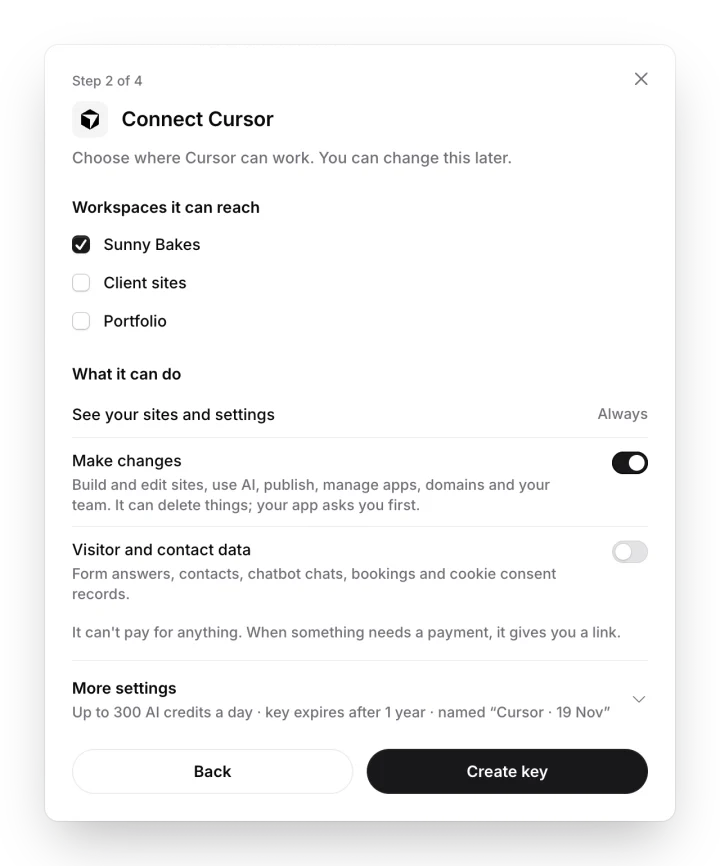
You decide what your AI app can reach
Every connection has its own switches. Change them whenever you like; they apply within seconds.
- Pick the workspaces it can work in
- Seeing your sites is always on; making changes is a switch
- Form answers, contacts, chatbot chats and bookings stay off until you allow them
- A daily limit on the AI credits it can use
- Your app asks before it deletes anything
- It can't pay for anything: when something costs money, you get a link
- See its activity, change its access or revoke it at any time
Use the AI app you already have
Chat apps sign in with your CodeDesign account. Coding tools connect with a key. Any app that connects to remote MCP servers works too.
- Claude Sign inWeb, desktop and phone. Add it under Customize → Connectors.
- ChatGPT Sign inOn the web, with developer mode. Add it under Settings → Apps.
- Claude Code KeyOne command in your terminal, then it is ready in every project.
- Cursor KeyOne entry in the mcp.json file in your home folder.
- VS Code KeyWith GitHub Copilot. VS Code asks for the key once and keeps it.


 Other apps KeyCodex, Windsurf, Gemini CLI, Zed and any app with remote MCP servers.
For coding tools: the setup, ready to paste
Create a key in CodeDesign first: Settings → ChatGPT & Claude → Connect an app. It is shown once. CodeDesign fills it in for you there; here, replace YOUR_KEY with it.
Run in your terminal
claude mcp add --scope user --transport http codedesign https://mcp.codedesign.ai/mcp --header "Authorization: Bearer YOUR_KEY"Then start Claude Code. CodeDesign is ready in every project; type /mcp to see it.
~/.cursor/mcp.json
{
  "mcpServers": {
    "codedesign": {
      "url": "https://mcp.codedesign.ai/mcp",
      "headers": {
        "Authorization": "Bearer YOUR_KEY"
      }
    }
  }
}
Use the file in your home folder, not in a project, so the key stays out of your code. Then check under Settings → MCP that codedesign is on.
MCP: Open User Configuration
{
  "inputs": [
    {
      "id": "codedesign-key",
      "type": "promptString",
      "description": "CodeDesign key",
      "password": true
    }
  ],
  "servers": {
    "codedesign": {
      "type": "http",
      "url": "https://mcp.codedesign.ai/mcp",
      "headers": {
        "Authorization": "Bearer ${input:codedesign-key}"
      }
    }
  }
}
Start the codedesign server when VS Code offers to, and paste your key when it asks. VS Code keeps it for you.
Your app's MCP or connector settings
Address: https://mcp.codedesign.ai/mcp
Transport: Streamable HTTP
Header: Authorization: Bearer YOUR_KEY
Add a server with these settings, then ask it something about your sites to check that it works.
Loved by 500K+ creators and small businesses
Showing our 5 star reviews from Trustpilot and G2.
-
A Great Website Builder for Non-Technical Business Owners
I recently created my first website using CodeDesign.ai, despite having no knowledge of coding, programming languages, or web development. The platform made the entire process remarkably simple and intuitive. As a business owner rather than an IT professional, I found CodeDesign.ai to be an excellent solution for creating a professional-looking website quickly and efficiently.
Henry Seeton Jun 9 2026, from Singapore -
Exactly what we needed to get online
We used CodeDesign.ai to build our website for our clinic, and honestly, it’s been a lifesaver! Their platform made it possible for us to create and launch our own site something we’d been trying to do for months. Before finding CodeDesign, we actually paid a lump sum to someone who promised to build our site and delivered nothing. So finally being able to do it ourselves feels amazing.
Jae Chris, USon Nov 3 2025, from United States -
Game Changer for Web Development!
I’ve been using CodeDesign.app for a recent project, and I have to say, it is hands down one of the most impressive AI website builders I’ve come across.
• Speed: Go from idea to live site in minutes.
• Code Export: The generated code is surprisingly clean and easy to work with if you need to host it elsewhere.
• Customisation: You aren’t locked into rigid templates; the editor gives you full control over colours, fonts, and layout.
SJ Parker, AUon Nov 11 2025, from Australia
CodeDesign MCP questions
Something else? Ask us or book a demo.
What is CodeDesign MCP?
MCP (Model Context Protocol) is an open standard that lets AI apps use tools from other services. CodeDesign's MCP server, at https://mcp.codedesign.ai/mcp, gives ChatGPT, Claude and other AI apps the actions you have in your CodeDesign dashboard. Your AI app works as you, only in the workspaces and with the permissions you choose.
What is CodeDesign.ai, and why not just ask my AI app for the code?
CodeDesign.ai is an AI website builder, with more than 4 million sites built on it. Describe a business and it makes a complete, responsive site, then hosts it with SSL on a free address or your own domain, with forms, a blog, an AI chatbot, bookings and analytics built in. Your AI app can write a page of HTML in a chat, but you would still have to host it, point a domain at it, make the forms work and paste in every later change yourself. Connected to CodeDesign, your AI app does all of that for you, and the site stays live and editable after the chat ends.
Which AI apps can I use?
ChatGPT (on the web, in developer mode), Claude (web, desktop and phone), Claude Code, Cursor, and VS Code with GitHub Copilot. Any other app that connects to remote MCP servers over Streamable HTTP works with a key, including Codex, Windsurf, Gemini CLI and Zed.
Does it cost extra?
No. Connecting an AI app is free. What it does follows your plan, exactly as in the dashboard: AI designs and AI edits use your AI credits, and things like saving an AI design as a site or using your own domain need the same plan they need there. See pricing.
What can my AI app see and change?
You choose when you connect: which workspaces it can reach, whether it can make changes (build, edit and publish sites, and manage apps, domains and your team), and whether it can read visitor and contact data such as form answers, chatbot chats and bookings. It can always see your sites and settings in those workspaces. You can change the switches later, and they apply within seconds.
Can it spend money or delete my sites?
It can't pay for anything. When something needs a payment, such as a plan, AI credits or a domain, it gives you a link and you pay on CodeDesign's own page. With changes allowed it can delete things, but your AI app asks you first, and deleting a site also needs the site's exact name. Only workspace owners and admins can delete sites.
Can I still edit the site myself, or take the code?
Yes. Nothing your AI app makes is stuck inside a chat. Every site opens in CodeDesign, where you can change it in the drag-and-drop editor or by chatting with the AI Companion, and check it on desktop, tablet and mobile. On paid plans you can also export the front end as HTML/CSS or React, or publish it to a WordPress site, so a developer can carry on in Cursor or VS Code. See code export.
Do I need an API key?
Not for ChatGPT or Claude: you sign in with your CodeDesign account and choose Allow. Claude Code, Cursor, VS Code and other coding tools use a key you create in CodeDesign. It is shown once, expires after a year unless you choose otherwise, and you can replace or revoke it at any time.
How do I disconnect an AI app?
Open Settings → ChatGPT & Claude in CodeDesign and revoke the connection. The app stops working with CodeDesign straight away.
Can my team use it?
Yes. Each member connects their own AI app, and it works with that member's own access. Workspace owners and admins see the AI apps members connected to the workspace and can remove any of them. On a Claude team plan, a Claude owner may need to add CodeDesign as a connector first.
Your websites, one message away.
Connect your AI app once, then ask for the site you want.
Connect your AI app Or copy the address:https://mcp.codedesign.ai/mcp